Documentation
How to Create an Order
Follow these steps to create a new order in the Motili portal. You’ll select the trade, set priority, add required contact details, and choose delivery or pickup so the correct fulfillment location and product options can populate.
Step 1
Start a New Order
Navigate to the left panel and click Create Order.
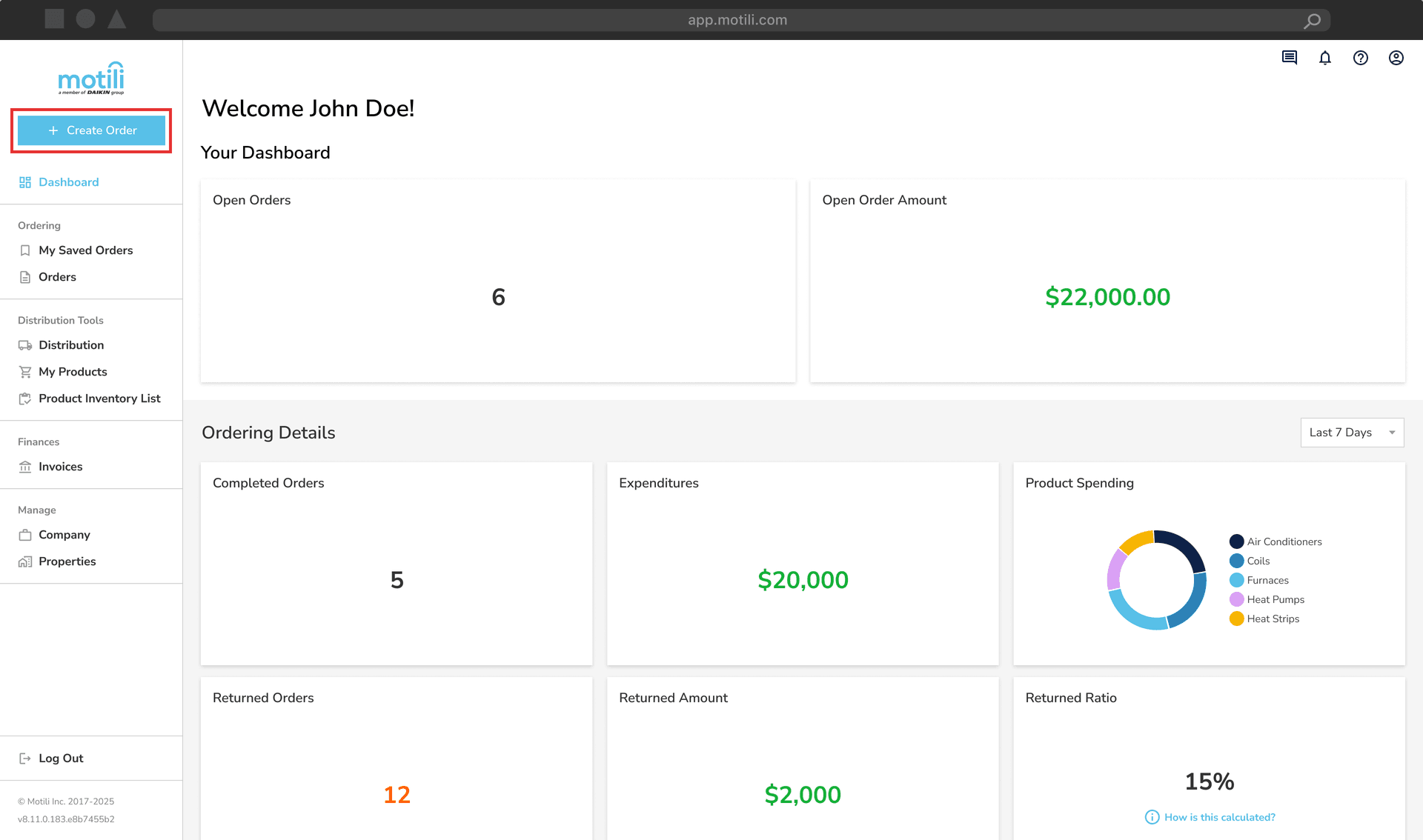
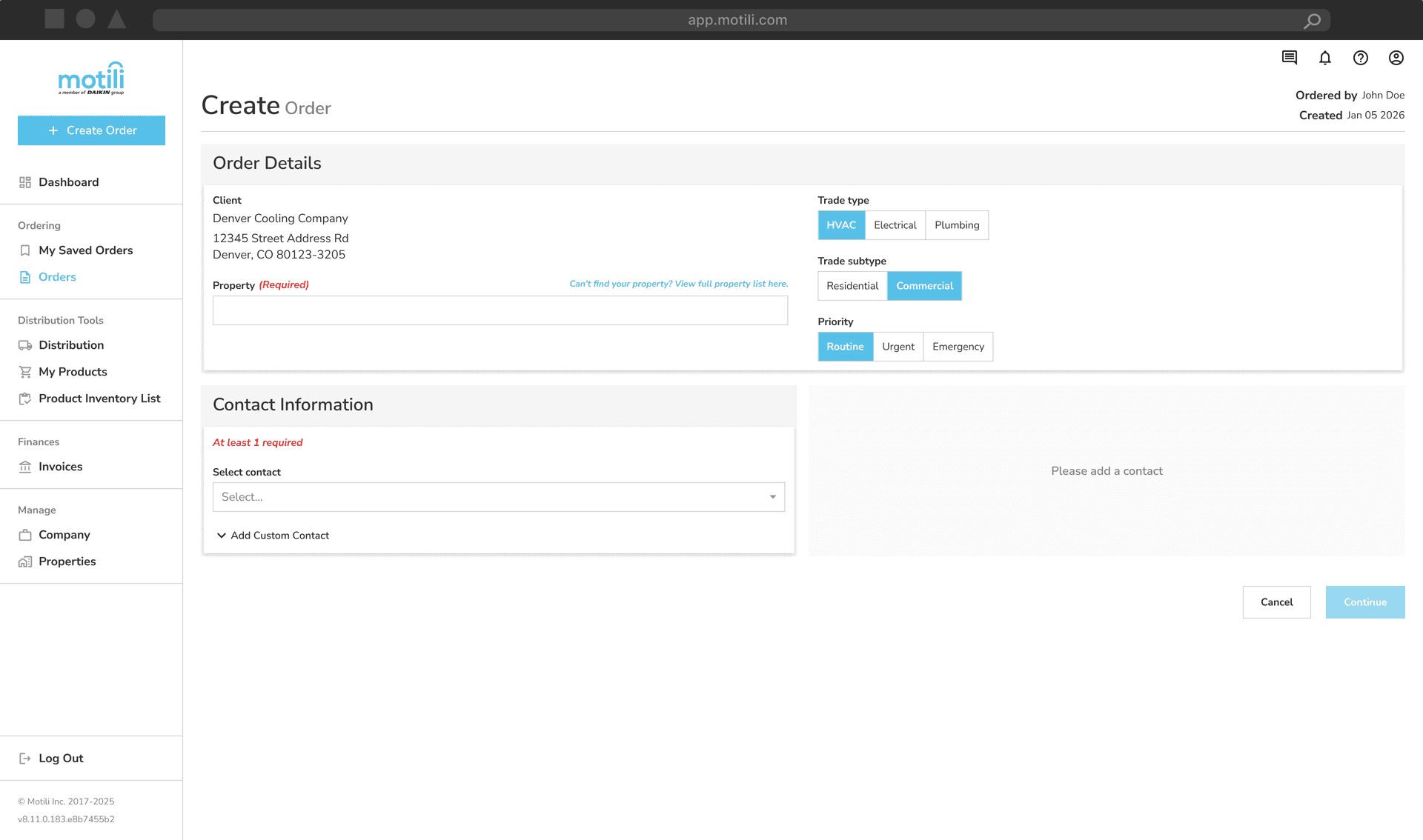
The Create Order screen will populate.
User information will populate under Client.
Step 2
Select Trade Details
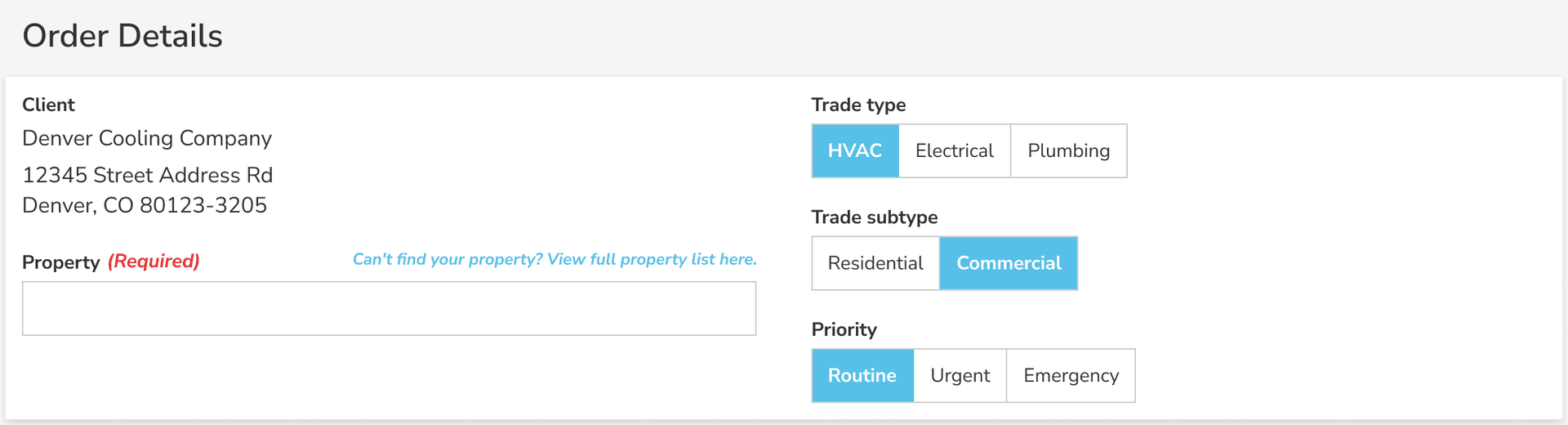
Choose Trade Type:
HVAC
Electrical
Plumbing (for water heaters)
Choose Trade Sub Type:
Residential
Commercial
Choose Priority:
Routine = standard orders
Urgent = orders with a shorter timeline
- Emergency = medical emergency in the home
Contact Motili to make sure these orders are processed ASAP.
Step 3
Property & Contact Information
Choose from Property Address (if applicable).
Enter Contact Information.
Choose a contact already set up on the client account OR add a custom contact.
Enter Contact Information.
Company
Contractor
Homeowner
Other
Enter name, email, and/or mobile or landline numbers.
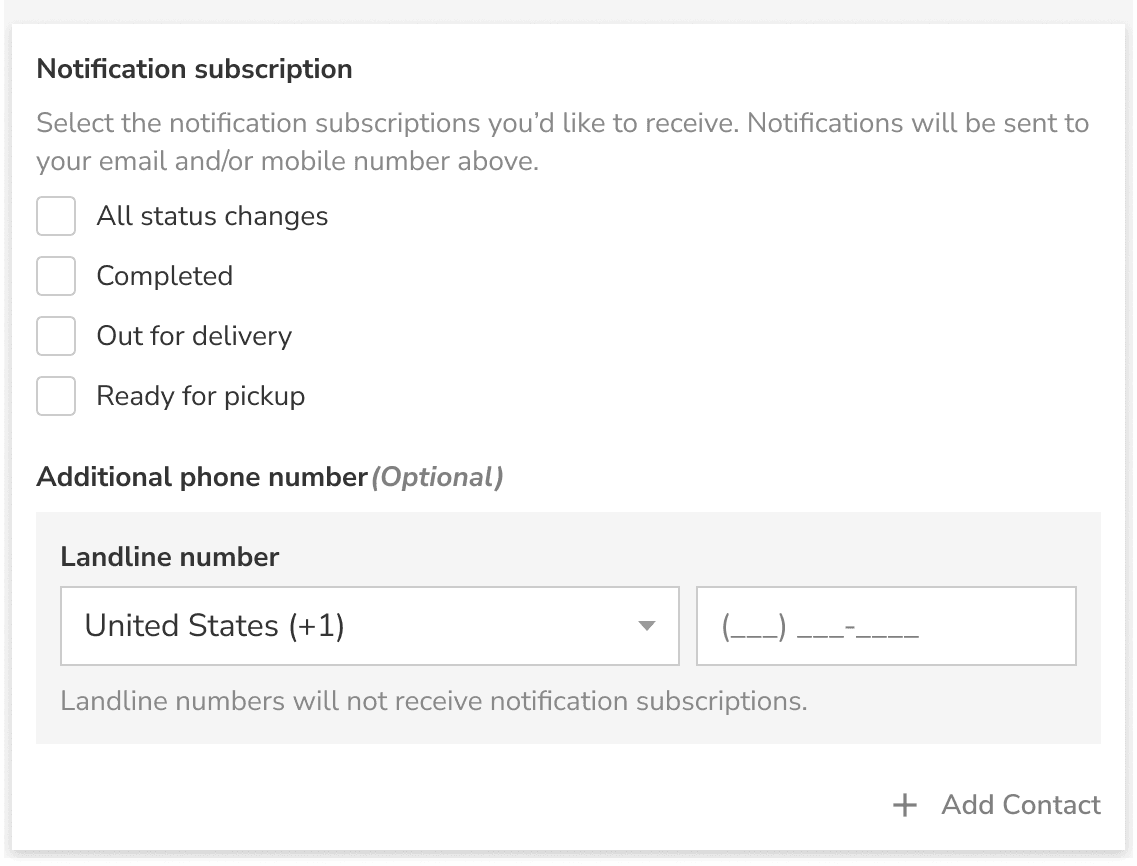
Choose the type of notification the contact should receive:
All Status Changes - all updates, including cancels and returns
Completed - invoiced by vendor
Out for Delivery - has left the warehouse
Ready for Pickup - ready for contractor to pick up
Important: Notifications can only be received via mobile phone or email.
Click + Add Contact to save the contact.
- Contact will appear on the right side of the screen.
You cannot continue without adding a contact.
Step 4
Fulfillment Type
Click Continue to open the fulfillment drawer.
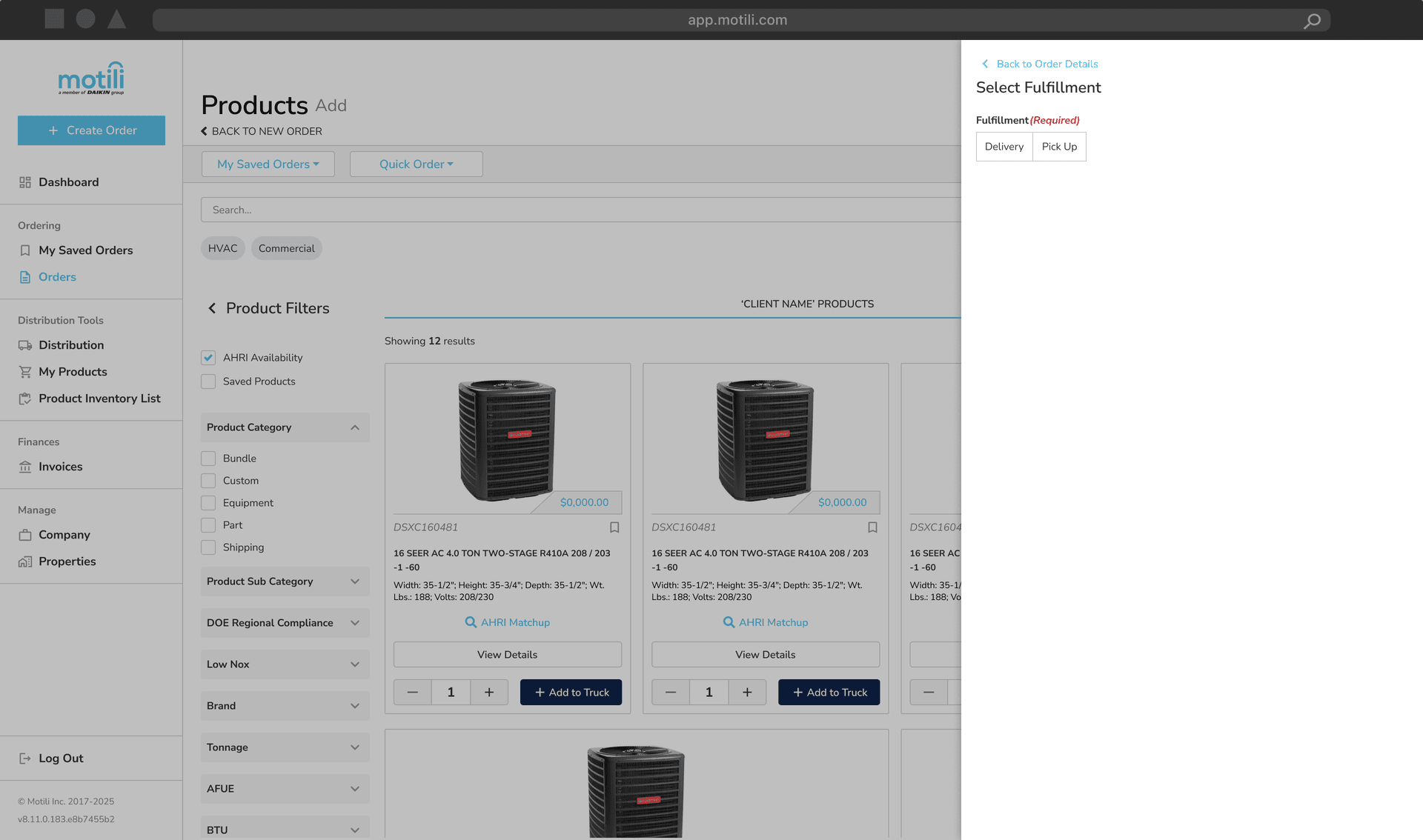
Select Delivery or Pickup
If Delivery:
Input the delivery address and click Choose.
Motili portal will choose a location with stock to deliver.
If Pickup:
Enter city, state, or ZIP code.
The system will display all vendors within the radius.
Choose a location.
Once the location is selected, the Products screen will populate.