Documentation
Selecting Products
Ways to Search for Products
Free Form
Type model number, partial model number, or part name.
Best matches will show the model number highlighted in red.
Remove filters by clicking the X next to each filter or Remove All
SKU (Model Number)
AHRI Number
Tonnage
Width
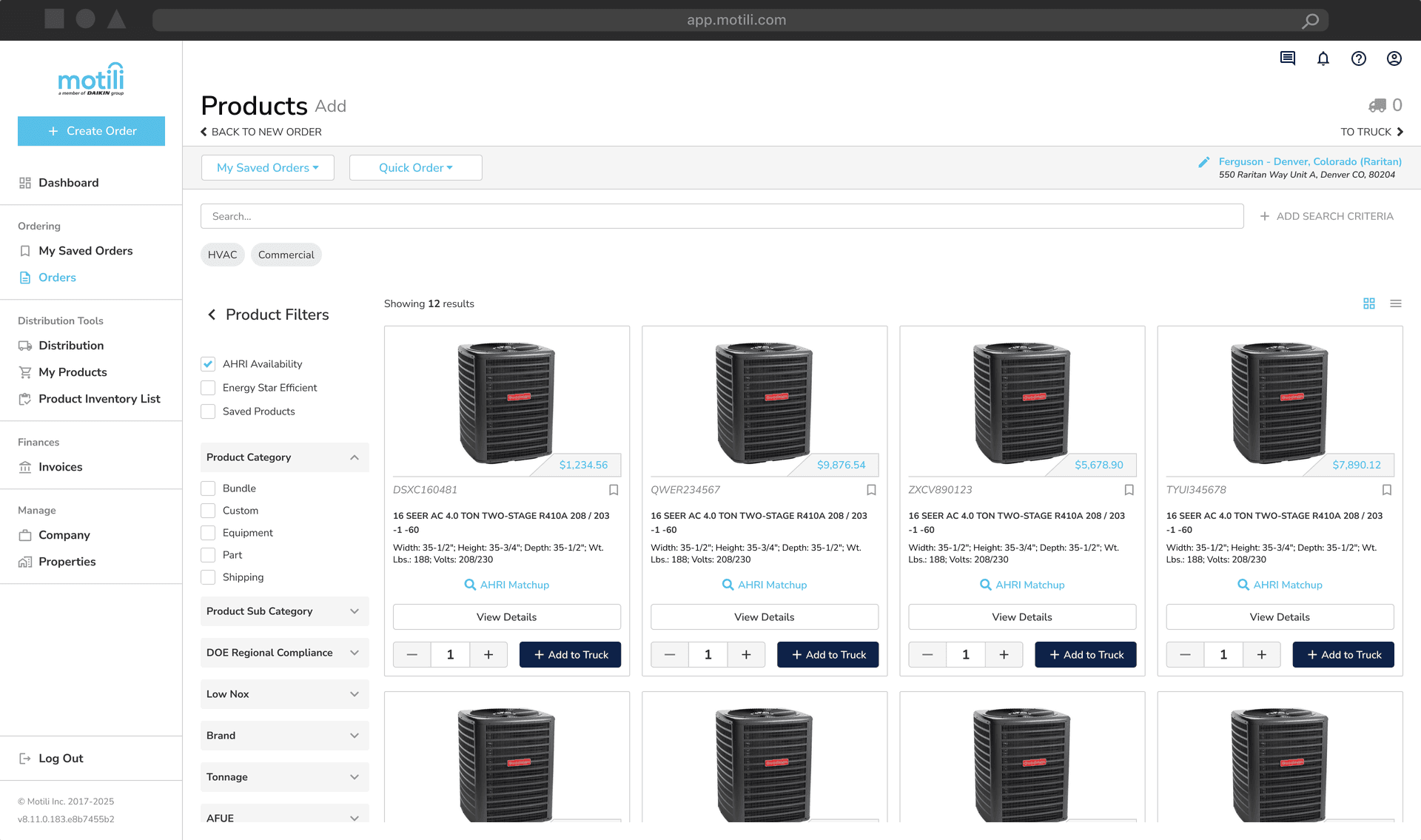
Product Filters
Use filters on the left panel to refine results.
Example:
Trade Type = HVAC
Sub Type = Residential
Product Category = Equipment
Subcategory = Air Conditioners
Further filter by brand, SEER, refrigerant, tonnage, etc.
Example product: GLSX4BA2410 (Goodman, 14.3 SEER, R-32, 2 ton)
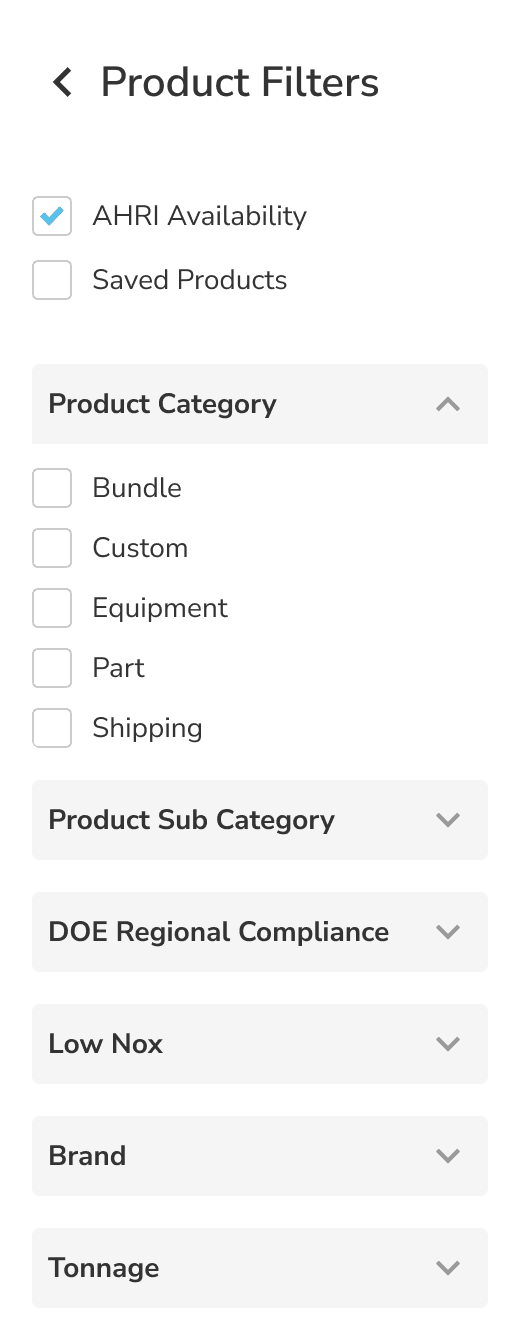
View Options
Switch between Card View and Table View using icons on the right.

In Table View:
Remove columns not needed.
Reset column widths.
Additional Filters
AHRI matching
AHRI matching is available on equipment cards that have current matchups
When clicked the matchup page will populate
Matchup page works similar to the left dial down of the product selector. Allowing user to look for specific tonnage, seer, AFUE etc.
Top of page allows for user to search by AHRI number, SEER, tonnage, fit, region, AFUE and furnace application
When eye icon clicked, get a full view of AHRI system. AHRI number, equipment with all details listed, if needed. As well as pricing.
When searching AHRI in truck, user can add each individual item by clicking the truck icon.
Energy Star equipment
Saved products
To save products, click the ribbon next to the product description.
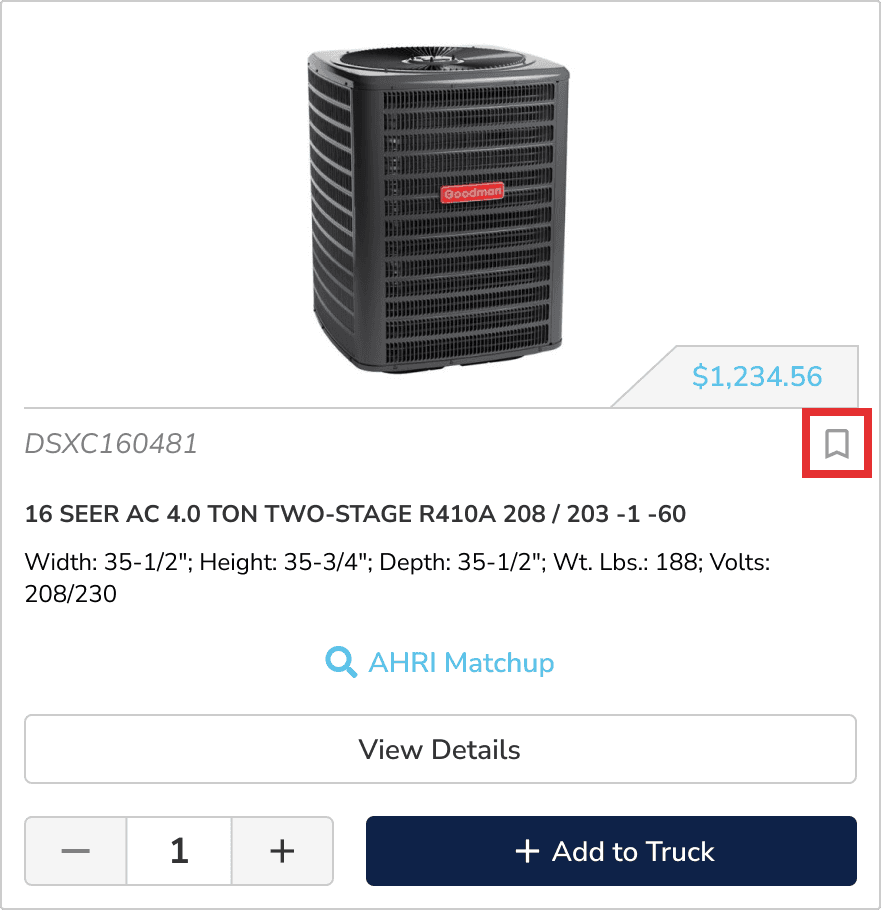
Saved products appear under Saved Products and ribbon will be highlighted blue.
Ways to Select Products
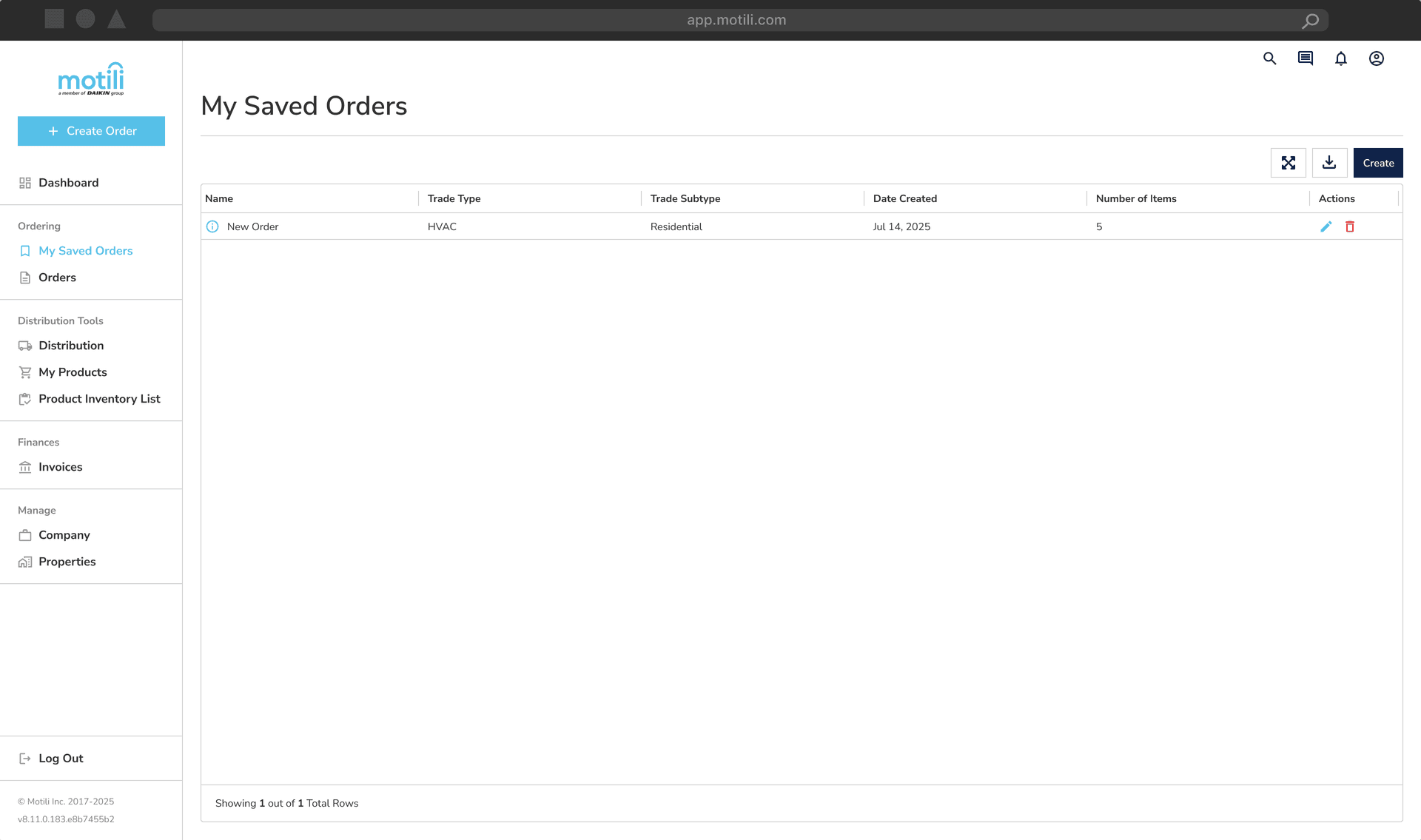
My Saved Orders
Add saved orders to your profile.
To create a saved order:
Go to the Product Add screen.
Click My Saved Orders, then click the link.
Click Create, name the saved order, add model numbers, adjust quantities, and click Save.
In a live order, open My Saved Orders to add, access, or delete saved orders.
Quick Order
A fast way to order in bulk.
Add items using:
Item#,Qty format (max 20 model numbers).
Model Number
Enter full model number, adjust quantity, and click + Add to Truck.
Reviewing Items in the Truck
Once all items are added, click To Truck.
Enter the following order information:
Purchase Order Number (required)
Reference 1: Homeowner name or Claim number
Reference 2: other pertinent information
Special Instructions
Save
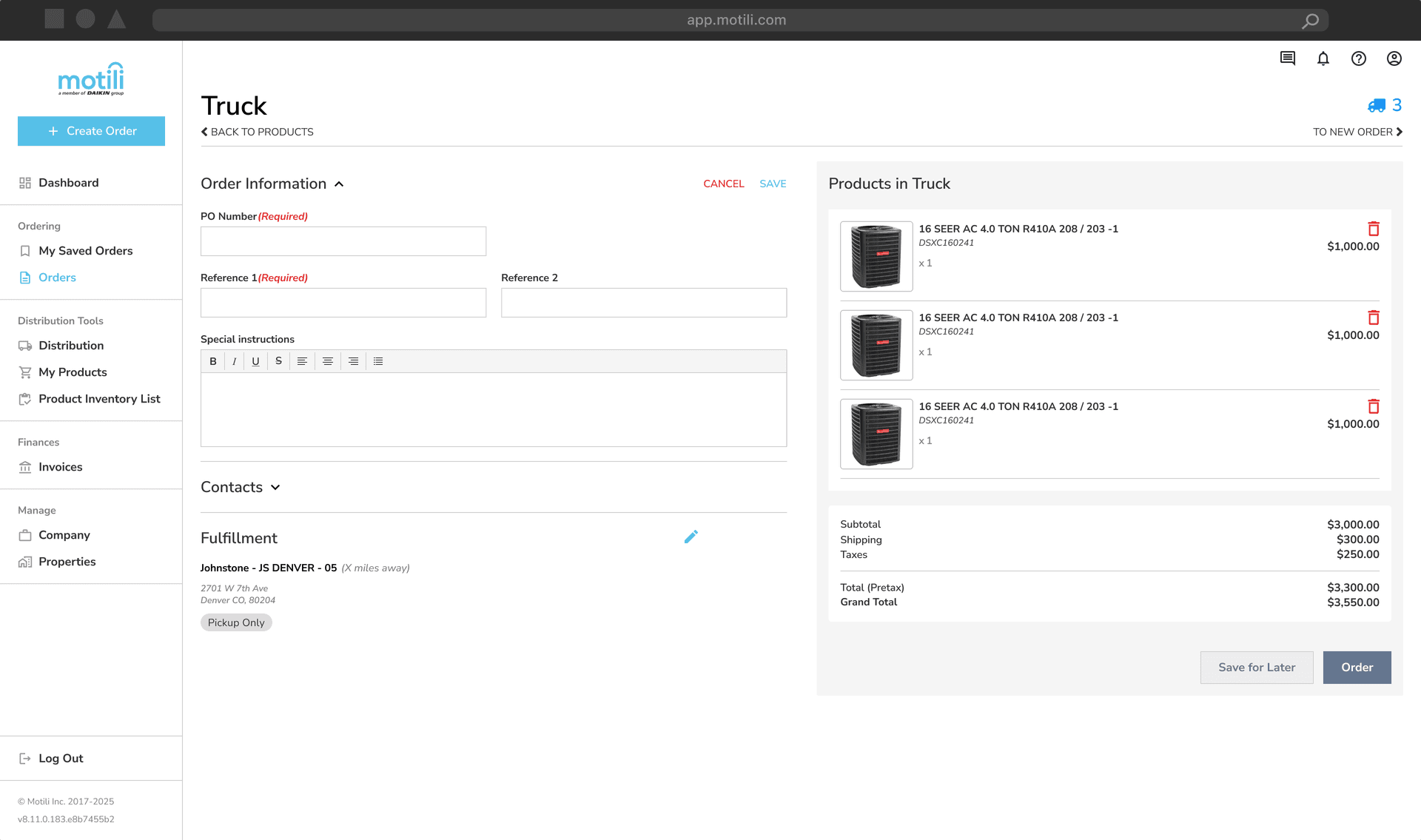
You may also:
Edit Contacts
Edit Fulfillment
Check if delivery address is a residential delivery
Check if a lift gate is required for delivery
Choose Save for Later or Order
You may also:
Edit Contacts
Save for Later
Order moves to Created status.
Order
Places the order.
If all items in stock, and the vendor has an Automation set up, it will follow the “happy path,” order moves to Ordered status. Vendor number is added to the order and order is now ready to go.
If items not in stock, order falls into Submitted status, no vendor number populates and Motili will have to manipulate order.
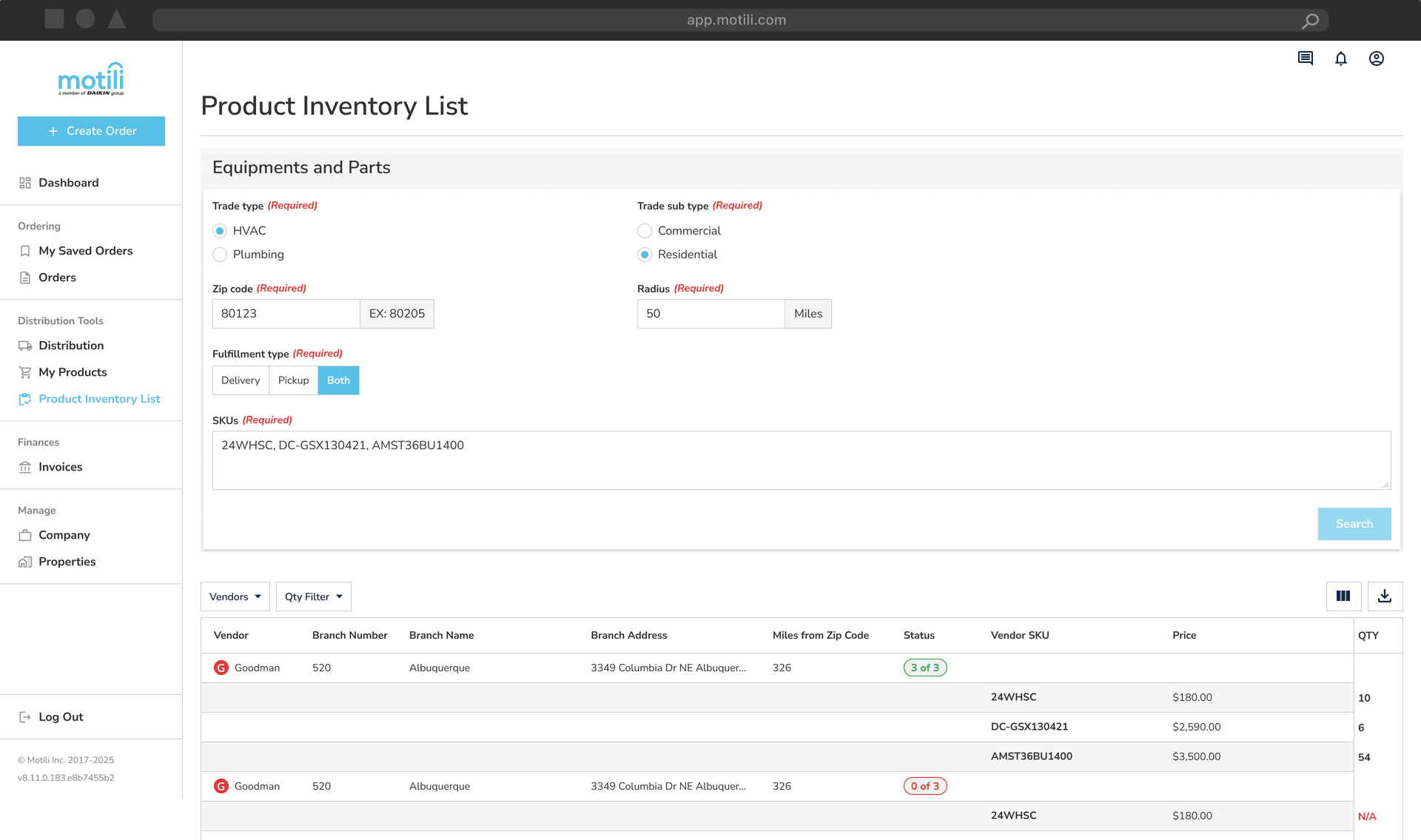
Inventory Searches
Automated ordering locations
Automated ordering turned on for certain vendor locations
Will pull inventory totals to show in stock
If low stock or no stock, will show “confirm availability” highlighted in red
Shows how many miles away from location chosen
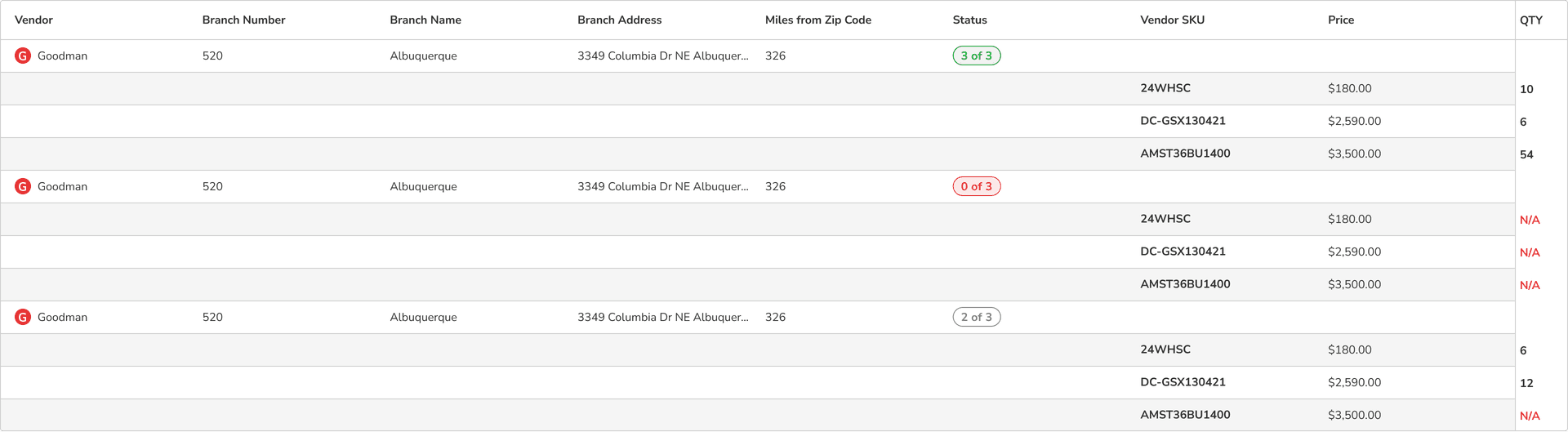
Non-automated ordering locations
Will show “confirm availability” highlighted in red
Motili can assist checking stock for these locations
Order Status Definitions
CREATED – Order created; after adding line items, click “order” to send to Motili.
SUBMITTED – Order sent to Motili; Motili rep will resolve issues preventing API flow.
ORDERED – Order is on hold.
ORDERED – CONFIRM – Invoiced with vendor, but fulfillment details do not match vendor system. Motili will review and correct.
COMPLETED – Picked up/delivered; Motili invoiced by vendor.
CANCEL REQUESTED – Cancel request received.
CANCELING – Motili is canceling the order in vendor system, not completed yet.
CANCELLED – Order cancelled in vendor system.
CLOSED – Billing complete; final status.
Chat With Us
The Chat with Us feature allows real-time messaging with a Motili agent.
Use chat to:
Inquire about or make changes to an existing order
Check stock and/or pricing
Ask any questions — we are here to help!