Documentation
Exception Flags
Exception flags are applied to an order to identify issues that must be resolved before the order can continue progressing.
Viewing Exception Flag Information
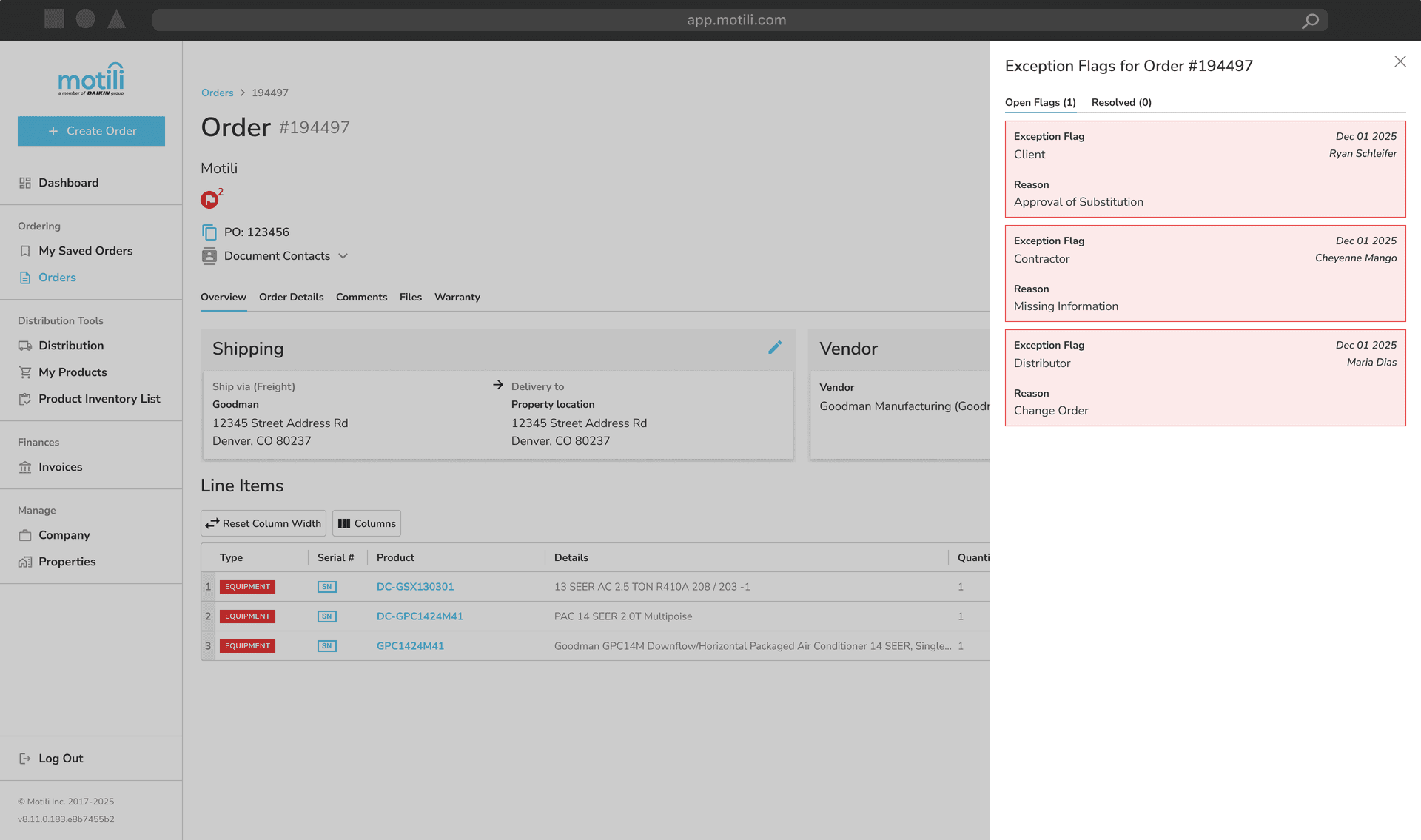
Exception flag details can be viewed directly from the order header.
To view exception details:
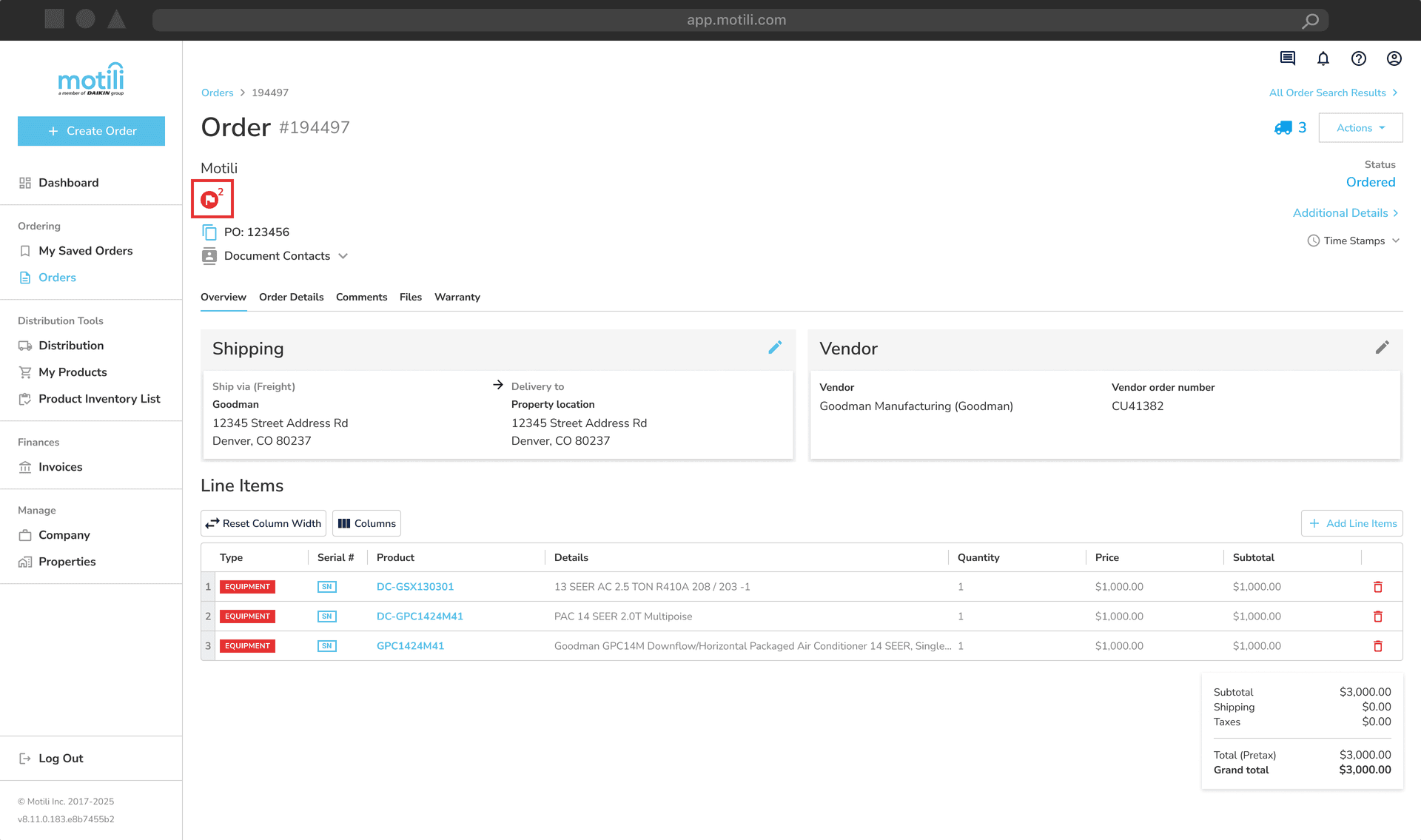
Click the Exception Flag icon on the order.
Review the information displayed for both Open and Resolved exceptions.
The following information is shown:
Exception type
Exception flag reason
Date the exception was created/resolved
User who created/resolved the flag
Exception Types
Each exception is assigned one of the following types:
Client – Exception requiring client action
Contractor – Exception requiring contractor action
Distributor – Exception requiring vendor/distributor action
Exception Flag Reasons
The following reasons may be assigned to an exception:
Approval of Substitution – Original item is out of stock and substitution approval is required
Approval to Split – Order must be sourced from multiple vendor branches due to stock limitations
Approve – Client approval is required
Change Order – Item change approval is required due to stock unavailability
Equipment Match Discrepancy – AHRI match discrepancy exists
Missing Information – Required order information is incomplete
Reject – Order has been rejected
Waiting on Stock Check Approval – Stock verification needed for vendors without API integration
Wrong Address – Incorrect address was provided on the order
Other – Exception reason not captured in the list above